Linux for Beginners: A Fun and Easy Guide to Getting Started
Discover the wonders of Linux and how to navigate this powerful operating system like a pro!

Welcome to the amazing world of Linux! Whether you’re a newbie just dipping your toes into the tech world or a budding penetration tester, this guide is here to make your journey with Linux smooth, simple, and fun. So, let’s dive right in and see what makes Linux so awesome!
What is Linux?
Linux is like the cool, open-source cousin of other operating systems like Windows and macOS. It was created by a genius named Linus Torvalds back in 1991. The best part? It’s free to use, modify, and share with your friends. Let’s explore why Linux is a big deal in the tech world, especially for penetration testers.
Understanding Linux Architecture
Think of Linux as a well-organized team, with each part playing a crucial role. Here’s a quick look at the main players:
-
The Kernel: The Brain of Linux
The kernel is the core of the Linux operating system. It’s the brain that manages everything, from running processes to handling hardware. Without it, Linux would be like a car without an engine. -
System Libraries: The Helpers
System libraries provide essential functions that help applications communicate with the kernel. They’re like the unsung heroes working behind the scenes. -
System Utilities: The Handy Tools
These are the tools and programs that perform everyday tasks. Think of them as your Swiss Army knife, ready to handle any job. -
The Shell: Your Command Centre
The shell is where you type commands and interact with Linux. It’s like a magical portal that lets you control the entire system. Popular shells include bash and zsh. -
Applications: The Fun Stuff
These are the programs you run to get things done. From web browsers to text editors, applications are what you use to make Linux work for you.

Navigating the Linux File System
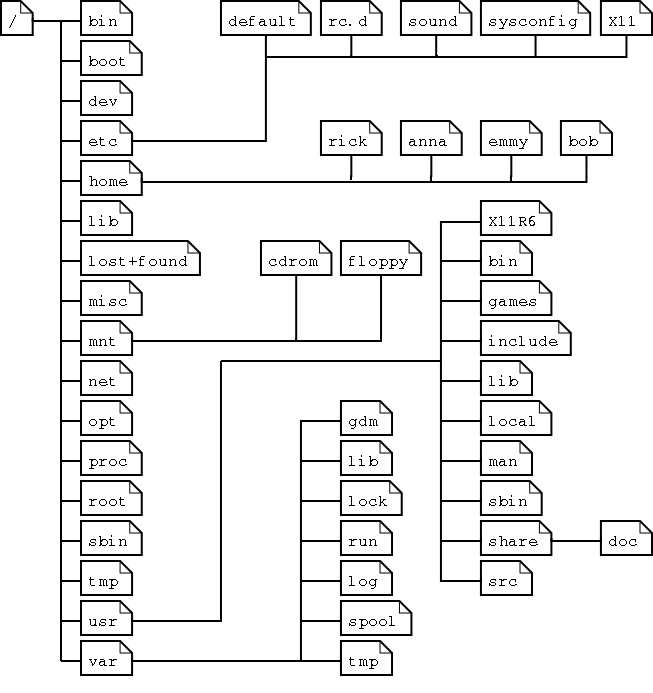
The Linux file system is like a well-organized library. Here’s a quick tour:
/bin: Home to essential command binaries like ls and cp./etc: The place for system configuration files./home: Your personal playground, where user directories live./var: The land of logs and temporary files./usr: A place for user-installed software and libraries.
Basic Linux Commands: Your Survival Kit
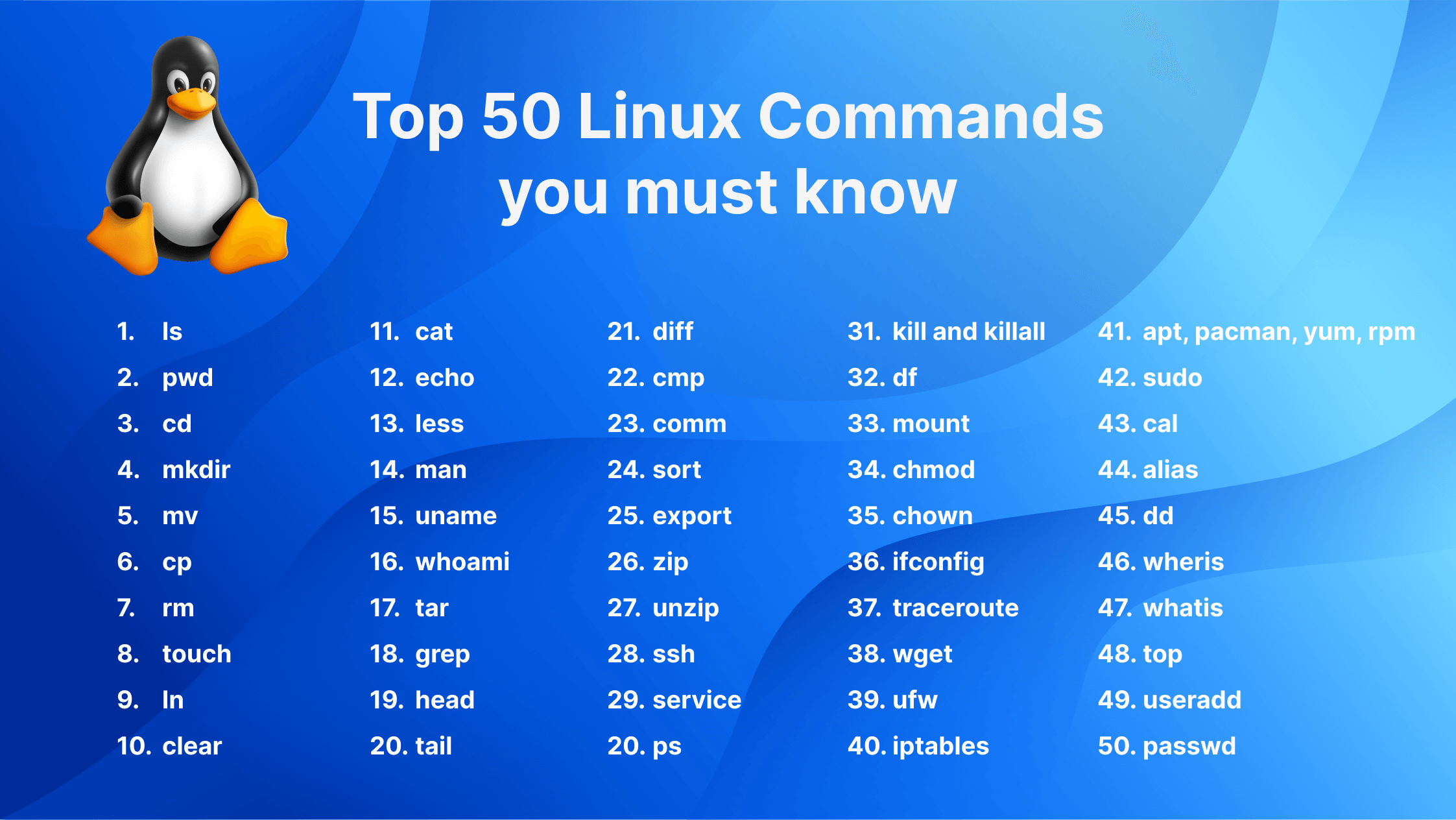
To get around in Linux, you’ll need to know some basic commands. Here are a few essentials:
-
ls: Lists directory contents. Like peeking inside a folder.
Real-Life Example: Imagine opening a drawer to see what’s inside. -
cd: Changes the current directory. Your way to move around.
Real-Life Example: This is like moving to a different room in your house. -
pwd: Prints the current working directory. So you never get lost.
Real-Life Example: Think of it as looking at a map to see your current location. -
cp: Copies files or directories. Handy for backups.
Real-Life Example: Like photocopying a document to keep an extra copy. -
mv: Moves or renames files or directories. Perfect for organizing.
Real-Life Example: Imagine moving a file from one folder to another or renaming a file. -
rm: Removes files or directories. Use with caution!
Real-Life Example: Think of it as throwing something in the trash. -
chmod: Changes file permissions. Control who can do what.
Real-Life Example: Like setting a lock on a door to control who can enter. -
chown: Changes file ownership. Useful in multi-user environments.
Real-Life Example: Imagine transferring ownership of a car to someone else.
Playing with the Hosts File
The hosts file is like a personal phonebook for your computer. It maps domain names to IP addresses. Need to block a website or test a new domain locally? Just edit the hosts file.
For Example,
127.0.0.1   localhost
192.168.1.10  myserver.local

Spinning Up a Simple Web Server
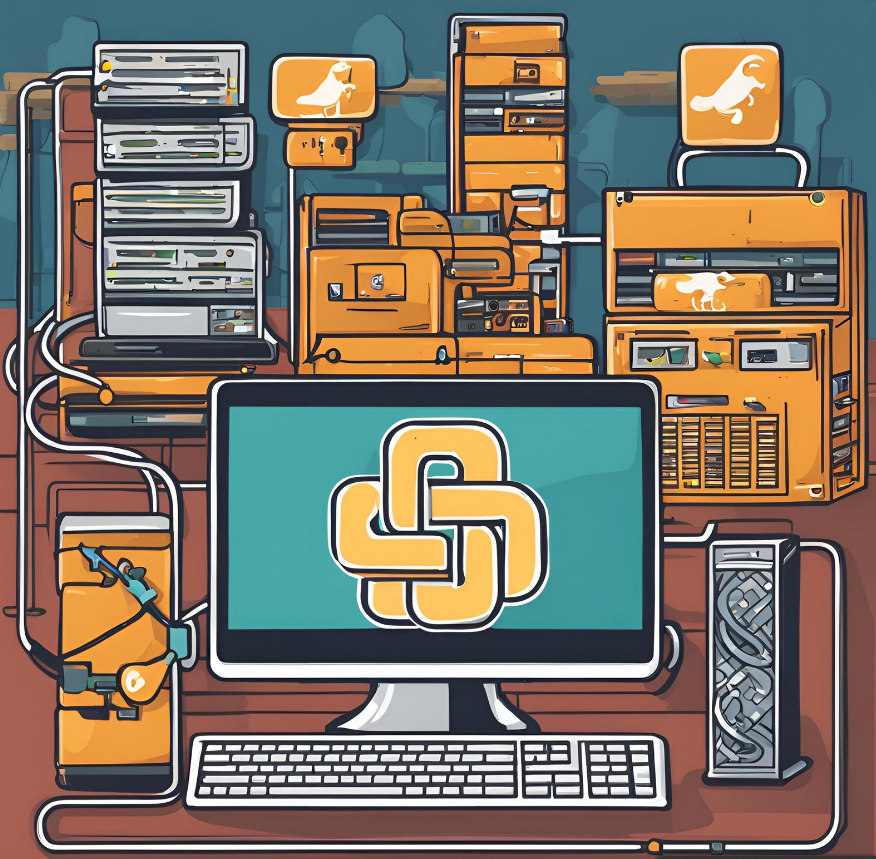
Want to quickly share files or test a web app? Use Python’s built-in web server!
python3 -m http.server 8000
This command starts a web server on port 8000. Now, you can access your files by navigating to http://localhost:8000.
Netcat: The Swiss Army Knife of Networking
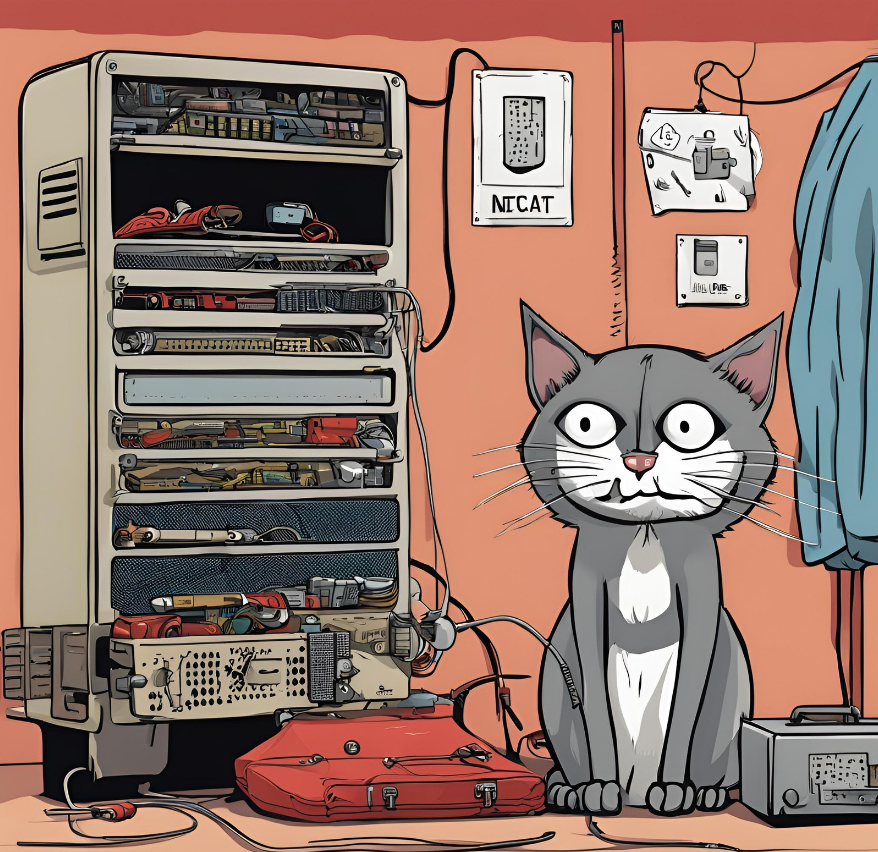
Netcat (nc) is a versatile tool for network tasks. Here’s how to start a listener:
nc -nlvp 1234
This command waits for connections on port 1234. Perfect for testing and debugging.
Conclusion
Congratulations! You’ve just taken your first steps into the world of Linux. From understanding its architecture to navigating the file system and using basic commands, you’re on your way to becoming a Linux pro. Remember, practice makes perfect, so keep exploring and experimenting.

Happy Linux-ing!